Sábado noche Saturday Night
|
| |
Material Material |  |

| ........... Programas ........... Programs | Paint Shop Pro Paint Shop Pro |
| Nature Illusion Studio Nature Illusion Studio |
Este tutorial fue hecho con el Psp X2, puede hacerlo con cualquier versión del Psp. This tutorial was done with the Psp X2, you can do it with any version of Psp. También usé para la parte opcional del tutorial, el programa Nature Illusion Studio. Also I used for an optional part of the tutorial, the program Nature Illusion Studio. |
1. Abrir una imagen transparente de 750 x 600 pixeles. Con el bote de pintura la llenaremos de color #334f5d Opening a transparent image of 750 x 600 pixels. With the pot of paint filled the color # 334f5d |
2. 2. Capas/ Nueva capa de trama. Layers / New layer of fabric. |
3. Selecciones/ Seleccionar todo. Selections / Select All. |
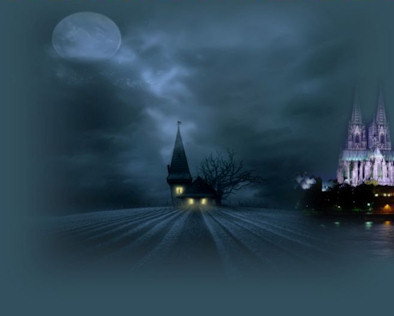
4. Abrir Tube 311NLF90208. Open Tube 311NLF90208. Copiar/ Pegar en la selección. Copy / Paste in the selection. |
5. Selecciones/ Anular Selección. Selections / Cancel selection. |
6. Colocar, desplazándolo un poco hacia arriba. Place, shifting slightly upward. |
7. Mejorar foto/ Eliminación de ruido en un paso. Improve photo / Elimination of noise in one step. |
8. Abrir Tube mds7770 Dome of Cologne. Open Tube mds7770 Dome of Cologne. |
9. Copiar/ Pegar como nueva capa. Copy / Paste as a new layer. |
10. Colocar a la derecha. Place on the right. |
|
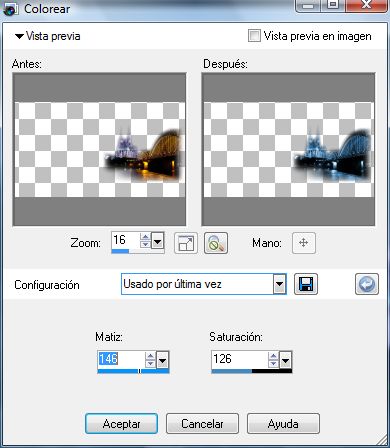
11. Ajustar/ Matiz y saturación/ Colorear. Adjust / Hue and saturation / Colorize. |
|
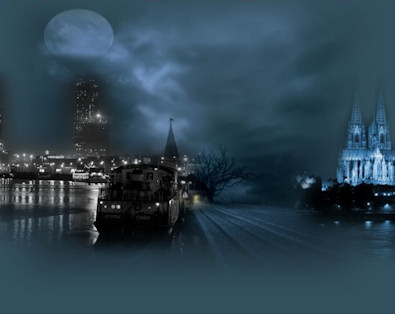
12. Abrir Tube mds8060 Harbour. Open Tube mds8060 Harbour. |
13. Copiar/ Pegar como nueva capa. Copy / Paste as a new layer. Colocar. Placing. |
|
14. Capas/ duplicar. Layers / duplicate. Colocar. Placing. |
|
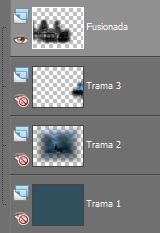
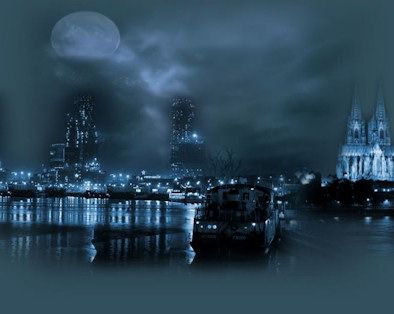
15. Cerramos Trama 1-2 y 3. Close Trama 1-2 and 3. Capas/ Fusionar/ Fusionar visibles. Layers / Merge / Merge visible. |
|
16. Ajustar/ Matiz y saturación/ Colorear. Adjust / Hue and saturation / Colorize. Mismos valores anteriores. Same previous values. |
|
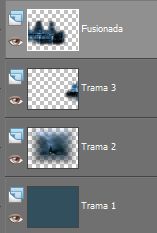
17. Abrir Todas las capas. Open All layers. |
|
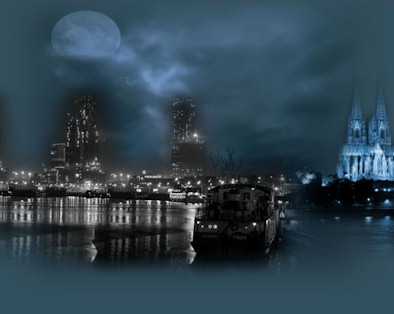
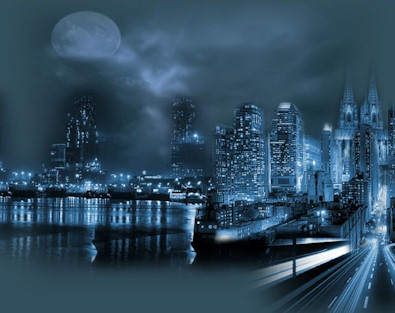
18. Abrir Tube highwayatnight-misted by dragonblu1207. Open Tube highwayatnight-misted by dragonblu1207. Copiar/ Pegar como nueva capa. Copy / Paste as a new layer. Colocar a la derecha, abajo. Put on the right, below. |
19. Ajustar/ Matiz y saturación/ Colorear. Adjust / Hue and saturation / Colorize. Mismos valores anteriores. Same previous values. |
20. Abrir Tube SKF_Town282.08. Open Tube SKF_Town282.08. Copiar/ Pegar como nueva capa. Copy / Paste as a new layer. Colocar. Placing. |
21. Ajustar/ Matiz y saturación/ Colorear. Adjust / Hue and saturation / Colorize. Mismos valores anteriores. Same previous values. |
22. Recolocar (si fuera necesario). Recolocar (if necessary). |
23. Capas/ Fusionar/ Fusionar Todo. Layers / Merge / Merge Everything. |
|
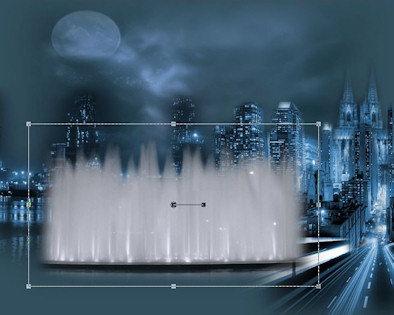
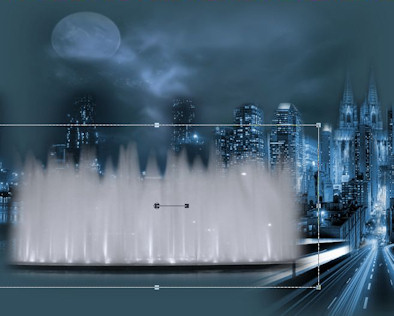
24. Abrir Tube mds7768 Water Fontain. Open Water Tube mds7768 Fontain. Colocar. Placing. |
25. Herramientas/ Herramienta Selección "K", alargar la imagen hacia la izquierda. Tools / Tool Selection "K", lengthen the image to the left. |
|
26. Abrir Tube Kara T4406. Open Tube Kara T4406. Redimensionar al 90%. Resize to 90%. Colocar. Placing. |
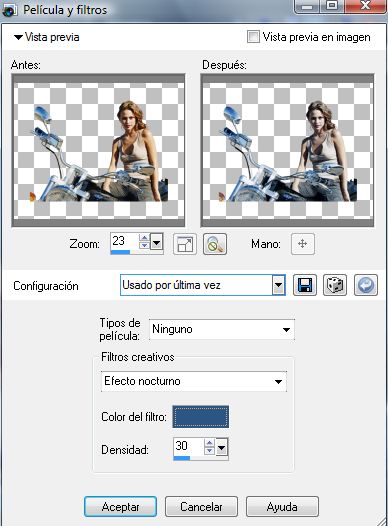
27. Efectos/ Efectos Fotográficos/ Películas y filtros. Effects / Image Effects / Movies and filters. |
|
28. Capas/ Nueva capa de trama. Layers / New layer of fabric. Añadir su firma. Add your signature. |
29. Capas/ Fusionar todo. Layers / Merge everything. |
30. Imagen/ Redimensionar 85% Picture / Resize 85% |
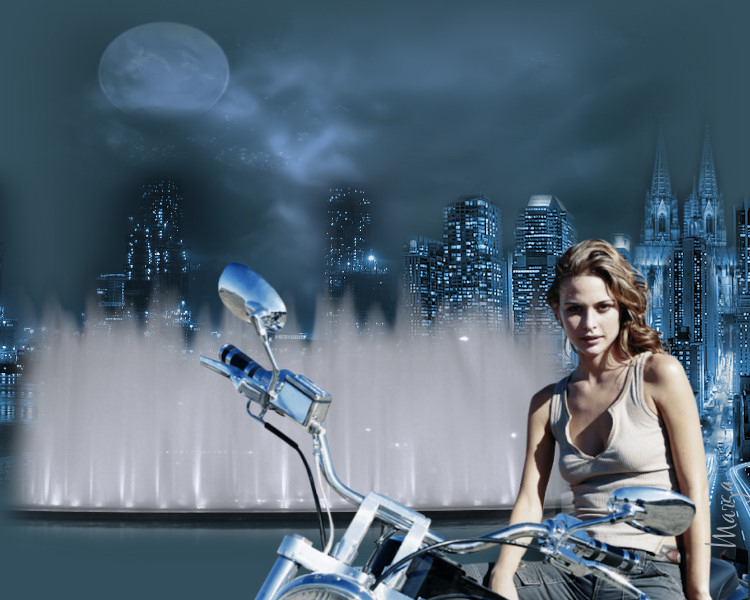
31. Aquí termina su trabajo. Here finishes its work. Lo guardamos en formato JPG. The store in JPG format.
|
OPCIONAL OPTIONAL |
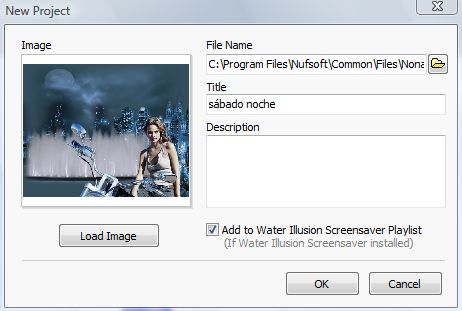
Nature Illusion Studio Nature Illusion Studio El programa Nature Illusion Studio, os la podéis bajar en versión demo. The program Nature Illusion Studio, you can get off at the demo version. Pinchar aquí Click here 1. Abrir el programa "Nature Illusion Studio" Open the program "Nature Illusion Studio" 2. Pinchamos en File / New Pinchamos on File / New |
|
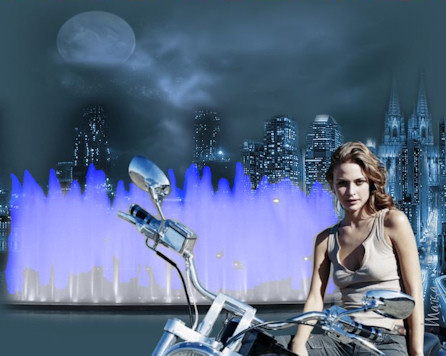
3. Pinchamos en el número 1 "azul" y pintamos el agua de la fuente. Pinchamos number 1 in the "blue" and paint the water from the source. |
|
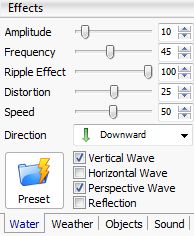
| 4. Valores que he usado para el movimiento: Values I used to the movement: |
|
| 5. Pinchamos en Preview y veremos nuestra animación. Pinchamos in Preview and see our animation. |
6. Guardamos. Keeping. Elegimos el botón "Build Gif" We chose the "Build Gif" |
7. Damos a "Create" y aquí finaliza nuestro trabajo. We "Create" and our job ends here.
|
Sábado noche Saturday Night |
Marga, 15 Abril 08 Marga, 15 April 08 |
 |
 |